
Overview
Cybersecurity doesn’t have to be complicated to be effective. This LinkNow guide breaks down a few simple, high-impact habits that busy business owners can use to protect their accounts, customer data, and finances (without needing a tech background).
Highlights
- • The Small Business Cybersecurity Mindset
- • Tip #1: Turn On Automatic Updates
- • Tip #2: Use Multi-Factor Authentication (MFA)
- • Tip #3: Stop Reusing Passwords (Use a Password Manager Instead)
- • Tip #4: Learn to Spot Phishing Attempts
- • Tip #5: Avoid Public Wi-Fi Whenever Possible
Introduction
Many owners assume protecting a business online requires expensive software, a full IT department, or technical skills that don’t come with the job description.
Here’s the good news: Protecting your business online doesn’t require a fancy degree or a vault full of complicated software. In most cases, it comes down to a few simple habits that shut down the most common attacks.
The tips contained in this post are designed to reduce common threats that target small businesses, using steps you can implement today, even if you’re not a computer person.
The Small Business Cybersecurity Mindset
Cybersecurity sounds like a job for hoodie-wearing hackers and expensive IT teams. In real life, it’s closer to basic business hygiene, analogous to locking up at night, checking who’s coming in, and keeping your most important paperwork safe.
Here’s the entire mindset in three quick goals:
Protect Access
Every login is a doorway into your business. One compromised password can open multiple doors fast and compromise your emails, banking information, payroll, social media, or website. Protecting access means making it harder for the wrong person to sign in, even if they get hold of a password.
Protect Data
Customer details, invoices, tax docs, contracts, and employee records are all types of information that keep your business running. Protecting this data means keeping it private (so it doesn’t get stolen) and keeping it available (so you can still use it if something goes wrong).
Protect Finances
Cybercriminals often have a simple goal: Get paid. Sometimes it’s through fake invoices or “urgent” payment change requests. Other times it’s ransomware, such as locking your files and demanding money to unlock them. Protecting your finances means putting a few guardrails in place so one bad click doesn’t turn into a costly mess.
Now that you understand the philosophy behind cybersecurity, let’s dive into a few tips that can significantly improve your online safety.
Tip #1: Turn On Automatic Updates
If cybersecurity had a “set it and forget it” button, automatic updates would be pretty close. No complicated tools. No tech jargon. Just a simple habit that quietly blocks a huge number of common attacks.
Why Regular Software Updates Are Important
Software updates aren’t only about new features or a fresh look. Many updates exist solely for fixing crucial security holes.
Here’s the important part: When a security weakness is discovered, the problem becomes widely known. That means attackers often know exactly what to target, especially on devices and apps that haven’t been updated yet. In other words, outdated software is low-hanging fruit. It’s like leaving a side door unlocked because it’s rarely used.
Turning on automatic updates helps close those doors before anyone tries the handle.
What To Update
If something touches money, customer data, employee records, or logins, it belongs on your “keep updated” list.
Your primary focus should be on the tools your business relies on every day, including:
- • Operating systems: Windows, macOS
- • Web browsers: Chrome, Edge, Safari
- • Phones and tablets: iOS, Android
- • Business-critical tools: Accounting software, POS systems, CRM platforms, website plugins, and any apps that handle customer information
Tip #2: Use Multi-Factor Authentication (MFA)
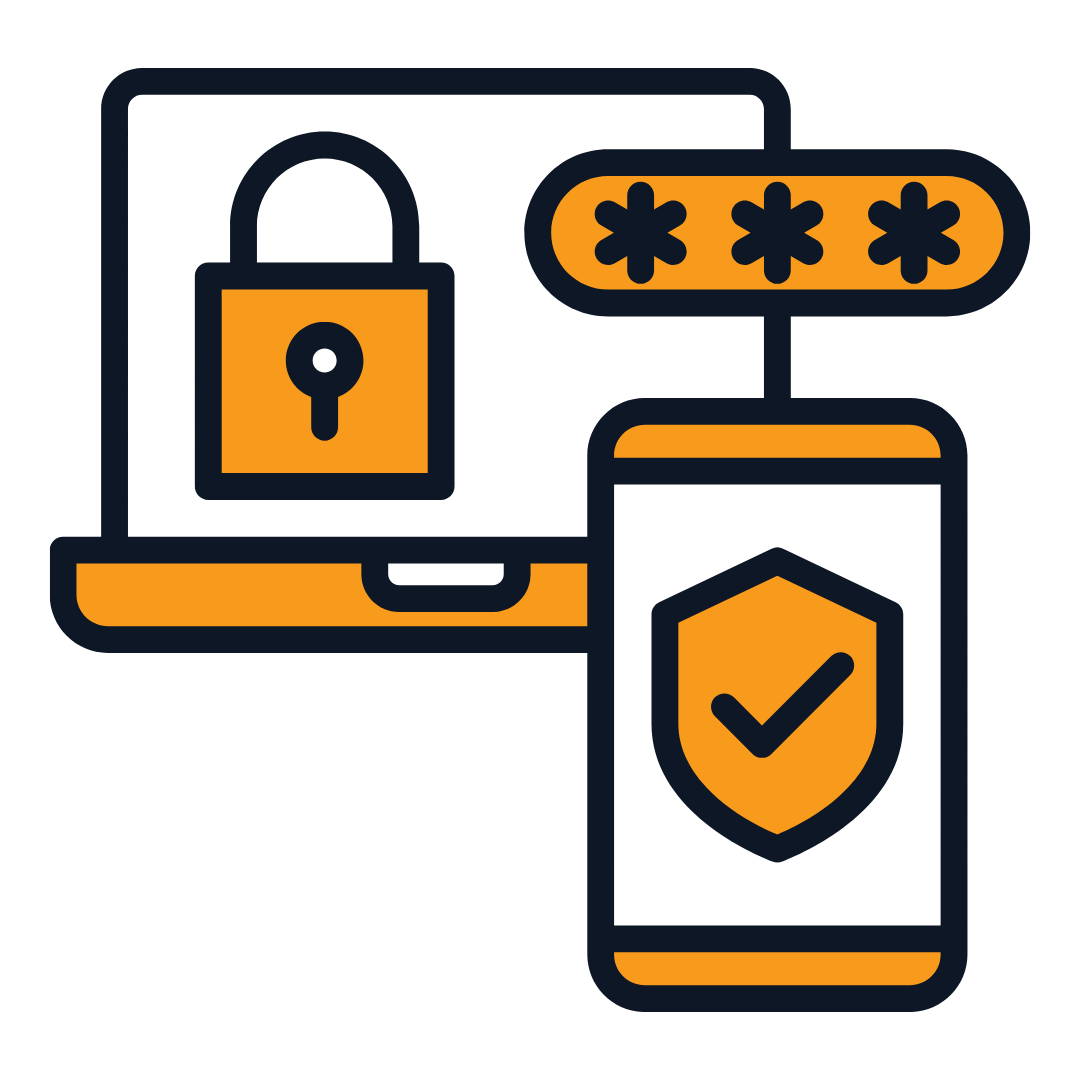
Passwords are still important, but passwords alone are no longer enough. A strong password can still be stolen through phishing, reused from an old data leak, or guessed if it’s been around too long. Multi-factor authentication, or MFA for short, adds a second lock on the door so that a password by itself can’t get someone in.
What Is MFA?
Put simply, multi-factor authentication is a security step that requires more than just a password to sign in. After entering your password, you confirm it’s really you by using a second proof, such as a code from an authenticator app, a tap-to-approve prompt on your phone, or a physical security key.
Examples of MFA
There are a few common options for MFA. All of them are better than a password alone, but some are stronger than others.
They include:
- • Authenticator app: Generates a unique code or sends a push notification to your phone
- • Security key: A small physical key you plug in or tap to verify sign-ins
- • SMS/text codes: Convenient and built into many services, but can be less secure than other options (although still better than nothing)
Tip #3: Stop Reusing Passwords (Use a Password Manager Instead)
When a business owner reuses a weak password, it’s not because they don’t care. They reuse passwords because they’re busy. That’s the trap. In cybersecurity, reuse is the difference between “one account got hit” and “everything got hit.”
The Problem With “Good” Passwords
A password can be long, complex, and pretty strong, and still put your business at risk if it’s reused.
Here’s why: Breaches happen. If one website or vendor gets compromised, stolen login details often get tested on other services. That means one leak can unlock multiple accounts (email, bookkeeping, payroll, even your website tools) if the same password shows up more than once.
So yes, strong passwords matter, but unique passwords matter more.
What Is a Password Manager and What Does It Do?
A password manager is a secure app that stores your logins and creates strong passwords for you. Instead of memorizing (or writing down) dozens of passwords, you remember one master password, and the manager handles the rest.
Here’s why it helps in real life:
- • Creates long, unique passwords automatically (so you don’t have to invent them)
- • Fills logins quickly (less time typing, fewer typos)
- • Reduces the headache of having to reset passwords
- • Keeps your team organized with secure sharing options
Tip #4: Learn To Spot Phishing Attempts
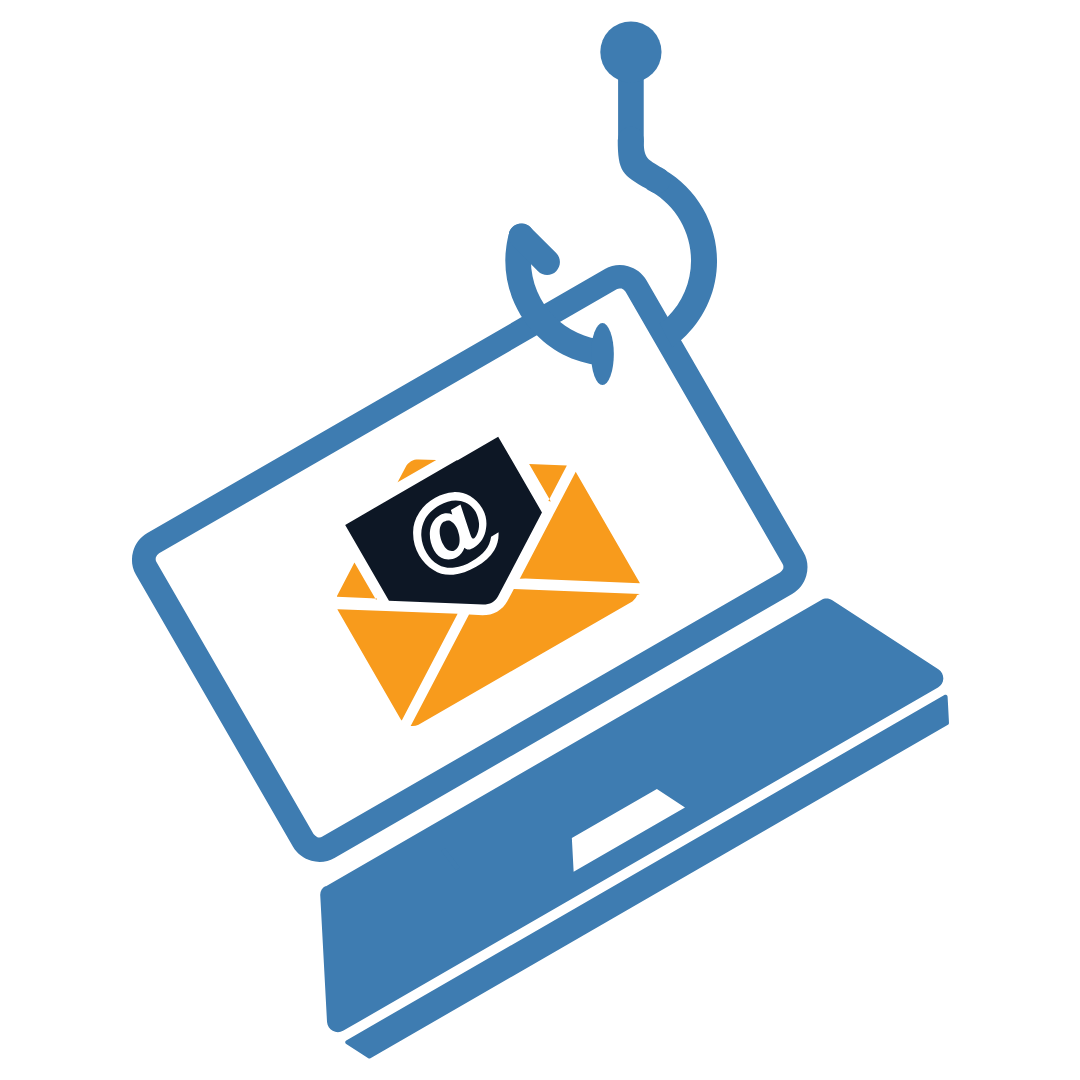
If there’s one cybersecurity threat that hits busy business owners over and over, it’s phishing. That’s because phishing doesn’t try to hack your systems first—it tries to hack your decision-making. A convincing email, a rushed moment, or one click can suddenly lead to someone stealing your password, your payment info, or access to your accounts.
What Phishing Looks Like Today
Modern phishing emails aren’t always full of typos and weird formatting anymore. Many look polished and normal, especially when they imitate tools you already use. Phishing also shows up through text messages and social DMs these days; however, email remains the biggest danger zone for most businesses.
Common bait includes:
- • Urgent-sounding invoices: “Past due, pay immediately to avoid fees.”
- • Password reset messages: “We noticed suspicious activity, reset now.”
- • Delivery notices: “Package held, please confirm your address.”
- • HR or document-sharing messages: “Policy update, review and sign.”
- • CEO fraud / fake boss requests: “I need you to buy gift cards right now” or “Wire this payment today.”
Quick Ways To Recognize a Phishing Email
Use this quick five-point scan before you click anything:
- Odd sender address or misspelled domain: The display name might look right, but the actual email address tells the truth.
- Unexpected attachment or link: If you weren’t expecting a file or the email doesn’t explain what it is, treat it like a red flag.
- Pressure and urgency: “Act now,” “final notice,” “account will be locked,” “must be done today.” Urgency is a classic manipulation tactic.
- Money or banking changes: Payment method changes, new wiring instructions, invoice corrections,
or requests to buy gift cards should trigger instant verification. - “Login to view” when you weren’t expecting it:
Especially if the email pushes you to sign in to view a
document you never requested.
Safe Click Habits
You don’t need to become paranoid. You just need a few quick habits that reduce risk dramatically:
- • Hover to preview links: Hover your mouse over a link to see where it really goes. If it looks strange, don’t click.
- • Go to the website manually instead of clicking: If the email claims it’s from your bank, your payroll provider, or Microsoft/Google, open a new tab and go there directly.
- • Verify payment change requests using a second channel: If a vendor (or your “boss”) requests new banking details, verify it using a known phone number instead of the one in the email.
Tip #5: Avoid Public Wi-Fi Whenever Possible
Public Wi-Fi is convenient. It’s also one of the easiest places for cybercriminals to take advantage of busy people who just need to send an email, check a file, or approve a payment between meetings.
Why Public Wi-Fi Is Risky
On public Wi-Fi, you don’t control who’s watching or what network you’re really on.
Even when a network name looks legitimate (“Hotel Guest Wi-Fi” or “Coffee Shop Free”), it might not be. Attackers can set up look-alike networks or monitor traffic on unsecured connections. That doesn’t mean every café network is a trap, but it does mean public Wi-Fi is a risky place to do anything tied to accounts, money, or customer data.
Better Options That Are Still Practical
You don’t have to stop working on the go. Just swap “risky and convenient” for “safe and convenient.”
- • Use a personal hotspot from your phone: For most owners, this is the simplest upgrade. Your phone becomes your Wi-Fi source, and you avoid shared public networks.
- • Use trusted Wi-Fi and a VPN: If you already have a VPN for work, use it whenever you’re off-site.
- • Avoid banking and payroll on public networks: If you’re in a rush and must use public Wi-Fi, treat financial accounts as off-limits. Wait until you’re on a trusted connection or your hotspot.
Secure Your Business and Keep Moving Forward With LinkNow
Cybersecurity can feel like a big, complicated monster until you break it down into a few repeatable habits. If you only take one thing from this post, make it this: Small improvements stacked together create real protection.
These steps reduce your risk dramatically, but they’re also easier to keep up with when your business systems are built with security in mind from the start.
At LinkNow, robust security features come standard. That means your website isn’t just designed to look great and generate leads—it’s also built to help protect your business from common online threats.
If you’d like help strengthening your online foundation, reach out to our team today to request a consultation.